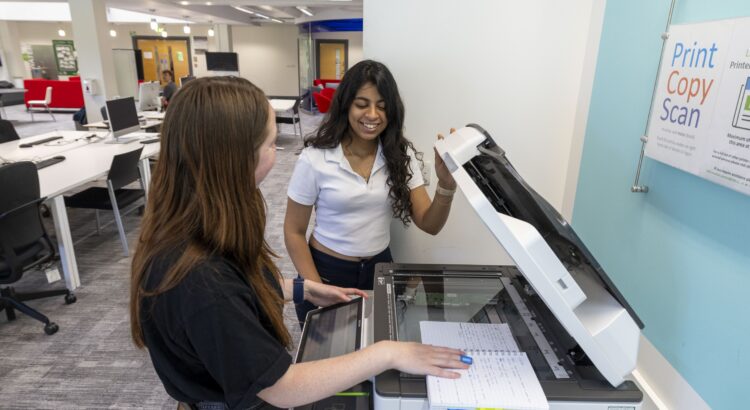
Need to print an essay, lecture notes or a poster on campus? Printing at the University of Stirling is easy once you know your options. This guide covers the basics so you can get your documents printed quickly and with minimal stress.
How to print from a university computer or laptop
- Open your document in the application you’re using (for example, Word or Excel).
- Select File → Print.
- Choose one of the two student print queues:
- Black or Colour
- Select the queue you want and click Print.
How to print from your own Windows laptop
You can connect your Windows laptop to the student print system while connected to eduroam.
- Click the Start button.
- In the search bar, type:
\\studentprint\then press Enter. - When prompted, enter your username in the format:
STUDENTS\username - Enter your usual network password.
- Double‑click the print queue you want to install:
- Black
- Colour
- or both
Agree to any on‑screen prompts.
Once installed, you can print directly from applications like Word or Excel by selecting File → Print and choosing the relevant queue (black or colour).
How to print from your own Mac
- Download the setup file from UniDesk Self-Service Portal.
- Open the file and click Papercut Printer.pkg.
- When prompted that the installer would like access to files on your Desktop, click OK.
- On the Install Papercut Printer screen, click Continue, then Install.
- Enter your Mac administrator login and click Install Software.
- When asked to allow access for System Events, click OK.
- Enter your short University username (for example
zzz00099, notzzz00099@students.stir.ac.uk). - Select the print queue relevant to your course.
- When installation completes, click OK.
You should now see a new UniPrinter queue on your Mac. Your printer is now fully set up.
When attempting to install University printers on a Mac, the installer may not open. Please see our resolution steps in UniDesk Self-Service Portal.
Mobile printing (print from your phone, tablet or laptop)
Mobile print lets you send documents to print without installing anything. To use mobile print:
- Email your document or image as an attachment to:
- studentprint@stir.ac.uk (black and white), or
- studentprintcolour@stir.ac.uk (colour)
Supported file types include:
- Microsoft Word
- Microsoft Excel
- Microsoft PowerPoint
- Common image formats
You’ll receive an email from papercut_notification@stir.ac.uk confirming whether your print job was successful. Once submitted, you can release your job from any printer on campus.
Print jobs are automatically deleted after 72 hours if not released.
How to release your print job at the printer
Your print job is held securely until you release it at a printer on campus (for up to 72 hours).
To release your print:
- Log in at the printer by:
- Tapping your University ID card on the card reader, or
- Using the touchscreen to enter your short username and password.
- Select Print release.
- Tap the document you want to print, then press Print.
To print everything in your queue, choose Select all, then press Print.